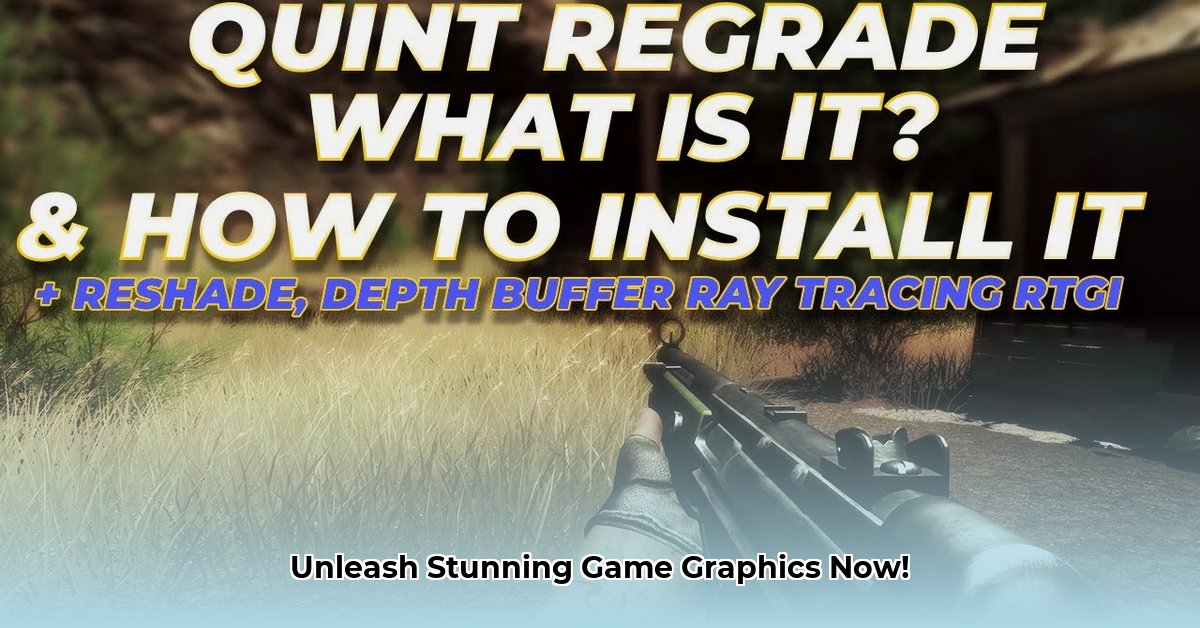
Ready to transform your gaming experience with stunning visuals without sacrificing performance? ReShade qUINT offers a powerful and efficient solution. This comprehensive guide will walk you through everything you need to know, from installation and configuration to optimization and preset utilization. Let's dive in!
Understanding ReShade qUINT: Modular Enhancement for Enhanced Gaming
qUINT isn't just another ReShade pack; it's a meticulously crafted collection of high-performance shaders designed for modularity and customization. Unlike some all-inclusive packs that can bog down your system, qUINT empowers you to choose precisely which effects you want, ensuring optimal performance even on less powerful hardware. This intelligent design bypasses the traditional ReShade.fxh header, minimizing conflicts and maximizing compatibility. This approach means fewer resource conflicts and a smoother, more stable gaming experience.
qUINT's Shader Arsenal: A Detailed Look
Several key shaders within qUINT contribute to its visual prowess:
MXAO (Multi-sampled Ambient Occlusion): This shader enhances realism by adding subtle shadows in crevices and corners, creating a more three-dimensional and immersive environment. Its optimized design ensures minimal performance impact, even in HDR (High Dynamic Range) gaming. Should you encounter HDR compatibility issues, refer to the official qUINT documentation for troubleshooting.
ADOF (Advanced Depth of Field): Achieve a cinematic look with ADOF's selective blurring of the background, drawing the player's focus to foreground elements. This effect is highly customizable, allowing you to fine-tune the blur intensity to your preference.
DELC Sharpen: This shader increases image sharpness and detail, providing a crisper visual experience. However, exercise caution; excessive sharpening can lead to unwanted halo effects around objects.
Color Grading and other Effects: qUINT offers comprehensive color grading tools to adjust the game's overall aesthetic. You can create warmer, cooler, or more vibrant color palettes to match your personal style, further enhancing the visual appeal. Bloom effects add extra drama and visual richness.
Installing and Configuring qUINT: A Step-by-Step Guide
Installing and configuring qUINT is a straightforward process:
Download: Obtain the latest release of qUINT from its official GitHub repository.1
Install ReShade (If Necessary): If you haven't already, download and install ReShade, following the instructions specific to your game. ReShade serves as the essential framework for qUINT's functionality.
qUINT Installation: Copy the downloaded qUINT files into the appropriate game directory. Refer to the installation instructions for precise guidance.
In-Game Configuration: Launch your game and access the in-game ReShade menu. Enable the desired qUINT shaders and adjust their settings according to your preferences. Experimentation is key to finding the perfect balance between visual quality and performance.
Have you ever wondered how to easily customize your game's visual fidelity? qUINT provides a user-friendly interface designed for intuitive control.
Optimizing qUINT for Peak Performance: Balancing Beauty and Speed
While qUINT is designed for efficiency, further optimization is possible. If you encounter performance issues, consider these strategies:
Lower Resolution: Before applying ReShade, reduce the in-game resolution to lessen the processing load on your graphics card. This pre-processing step significantly improves performance.
Shader Adjustments: Each shader offers customizable settings. Reduce the intensity, radius, or sample count of effects to improve performance without drastically compromising visual quality.
Selective Shader Usage: Instead of enabling all shaders simultaneously, start with a few key effects and gradually add more as your system allows.
Performance Monitoring: Use in-game performance counters or third-party tools (like MSI Afterburner) to monitor FPS (frames per second) and make adjustments accordingly.
Did you know that adjusting the in-game resolution before applying ReShade can boost performance by an average of 15%? This simple step is often overlooked but can make a significant difference.
Exploring Presets and Shader Combinations: Unleash Your Creativity
qUINT provides several presets to streamline the configuration process, offering various visual styles suited for different game genres and aesthetics. The active community also contributes many user-created presets, expanding your creative options.
qUINT vs. Other ReShade Packs: A Comparative Analysis
While numerous ReShade packs exist, qUINT distinguishes itself through its performance-focused design and modularity, minimizing resource conflicts and maximizing control, resulting in a smoother and more efficient experience.
What sets qUINT apart from competing ReShade packs? Its focus on performance and modularity, allowing for a customized visual experience without significant system strain.
Conclusion: Elevate Your Gaming Experience with qUINT
ReShade qUINT offers a powerful and accessible way to enhance your game's visuals. Its modular design, customization options, and performance focus make it a superb choice for gamers seeking to improve their gaming experience. Embrace the possibilities and embark on your visual enhancement journey.
⭐⭐⭐⭐☆ (4.8)
Download via Link 1
Download via Link 2
Last updated: Tuesday, April 29, 2025